
Introduction
KSL may send you a remote Outpost device so that we can control your lighting or sound system(s) for remote troubleshooting and/or configuration. Additionally, KSL may supply an Outpost device as part of an ongoing service contract. This guide is intended to walk you through connecting the Outpost device to your hardware.
Package Contents
Inside the Outpost package that we've shipped you, you should find the following items:
Outpost device
Power supply
Ethernet cable
Depending on the specifics of your lighting/sound system(s), additional items may be included in the package.
Reference Pictures
Locations on these pictures are referenced in the steps below.
Rear
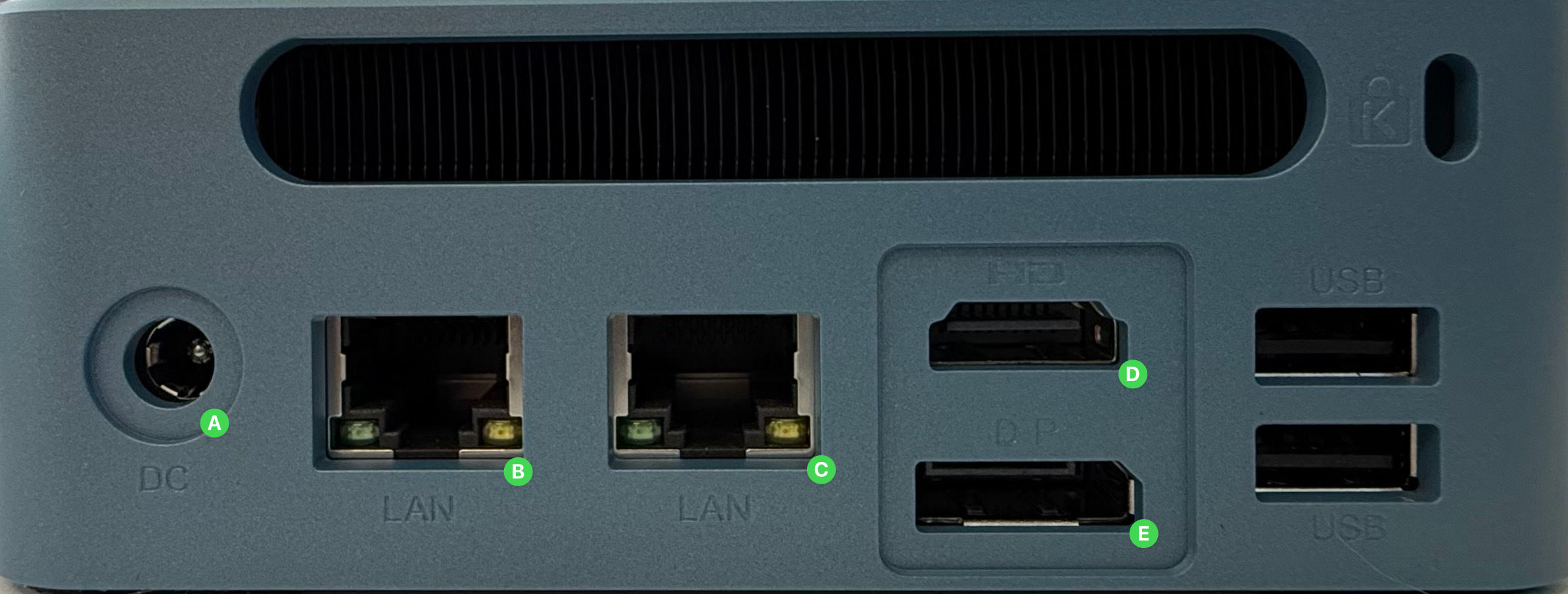
A. Power supply input
B. LAN1 port
C. LAN2 port
D. HDMI output
E. DisplayPort output
F. USB-A ports
Front
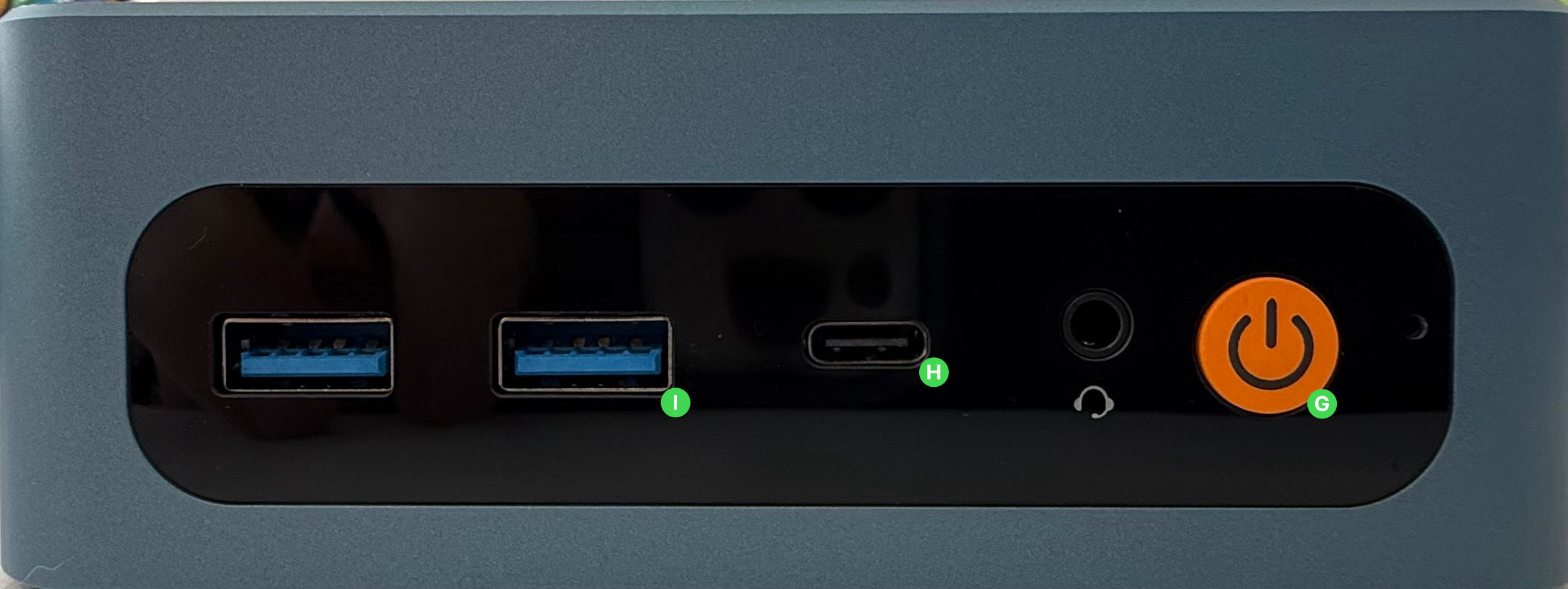
G. Power button
H. USB-C port
I. USB-A ports
Connect Outpost to Power
Connect the power supply to the wall and to the power input (A) on the rear of the Outpost.
Connect Outpost to Lighting/Sound System
Depending on the specifics of your system, you may connect the Outpost to your system in different ways. Your KSL representative should indicate which of these options to use to connect to your lighting/sound system.
If you are unsure of the specific method to connect to your specific lighting/sound system, please stop here and consult your KSL representative.
Connect to a Networked System
Connect the included ethernet cable from the LAN1 port (B) (closer to the power connection) to your lighting/sound system.
If necessary, configure the network (IP address, subnet) for LAN1 so that it is within the correct IP range for your lighting/sound network.
Connect to a Non-Networked System
If your lighting/sound system does not use a network to communicate, you may need to connect the Outpost to specific hardware using a USB connection, serial connection, or other type of connection. Please consult your KSL representative for further details, or follow the additional instructions included with your specific Outpost.
Connect Outpost to the Internet
This section of documentation is in progress and will be published soon.